Paint.
It’s true that drawing often needs nothing more than a pencil and an eraser. But there’s a very wide range of tools you can use on paper. Here you’ll find recommendations and personal opinions to help you make your choices.
Alcohol markers
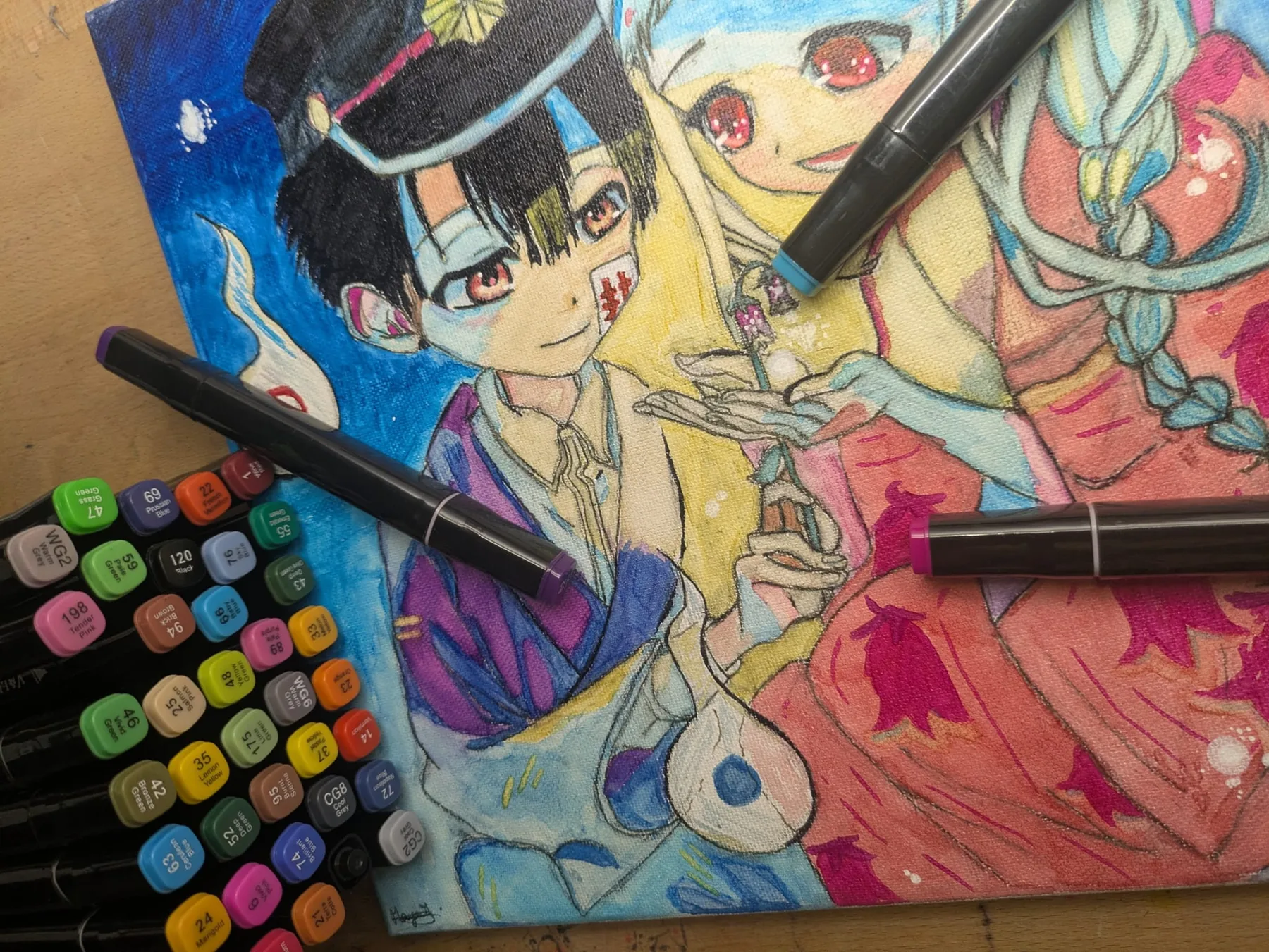
Alcohol markers are a kind of pen that gives you a bright and clean colour (depending on the brand).
They come in a huge range of shades and most of them have two nibs, a fine one for details and a thicker one for large areas.
You do have to get the choice and the placement of your strokes right though, because these markers cannot be erased.
Watercolour
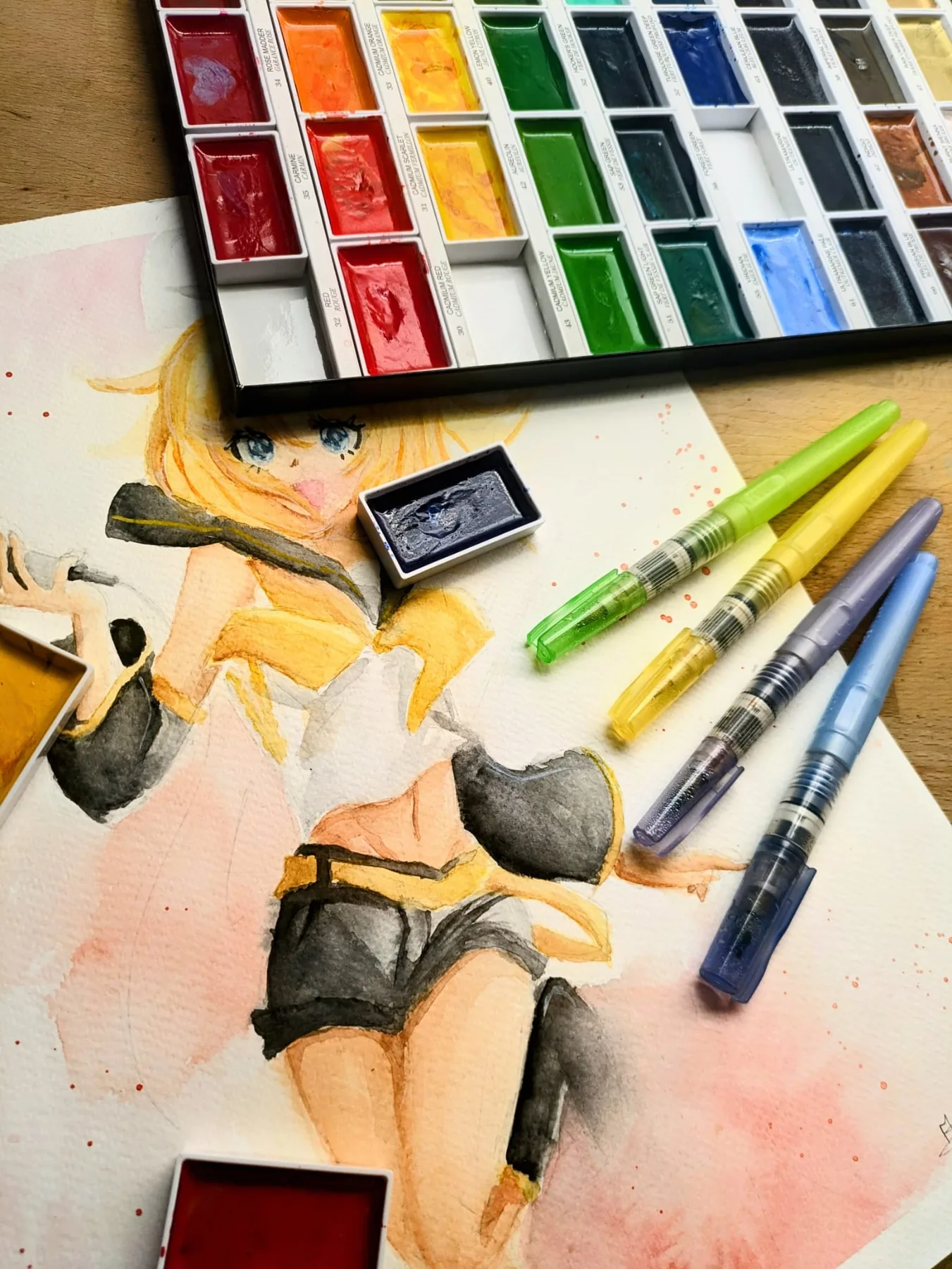
Watercolour is a kind of paint that you dilute with water to build contrast, to make gradients…
It takes time to master colour mixing, how much water to use, how much pigment… But watercolour also offers a lot of possibilities, like being able to partly lift the colour back off with water.
Blending stump
A blending stump is a simple and clean way to smudge pencil (graphite or coloured).
A stump looks like a pencil or a pen, but it’s made entirely of paper. That lets you blend the pigment from the pencil
Lots of people blend with their fingers, but the least messy way is still the stump. With one you can make lovely shadows on your drawings or cover large areas with an even grey (or not).
Kneaded eraser
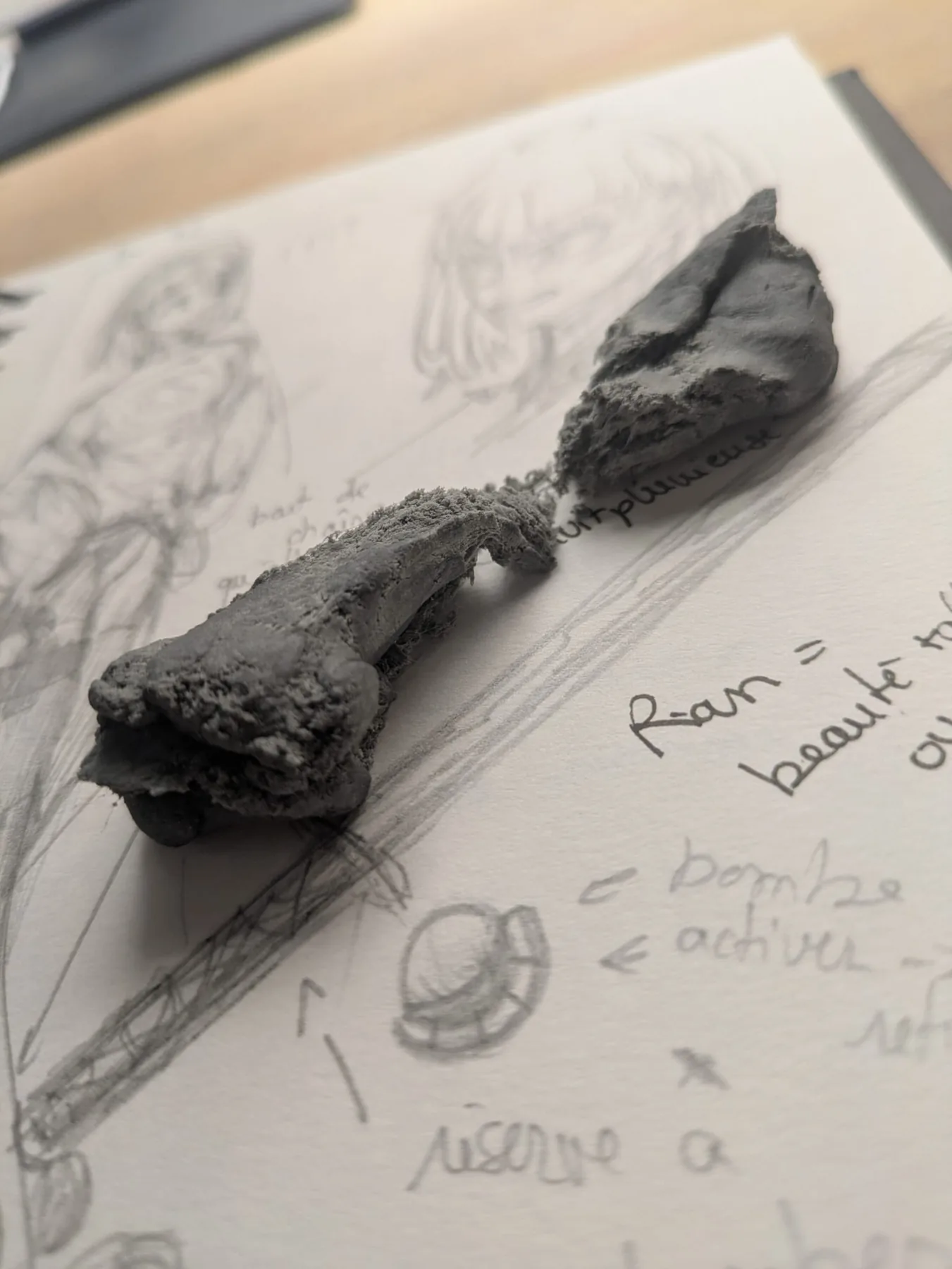
The kneaded eraser is a rather unusual eraser. Unlike the usual ones, it behaves like modelling clay.
It’s not for rubbing out a drawing completely, only partly.
When you want to ink a pencil drawing, the habit is to ink straight over the pencil. The better way is to lighten the lines with the eraser, which won’t erase the drawing but will let you ink without leaving unwanted pencil marks.
Fineliners
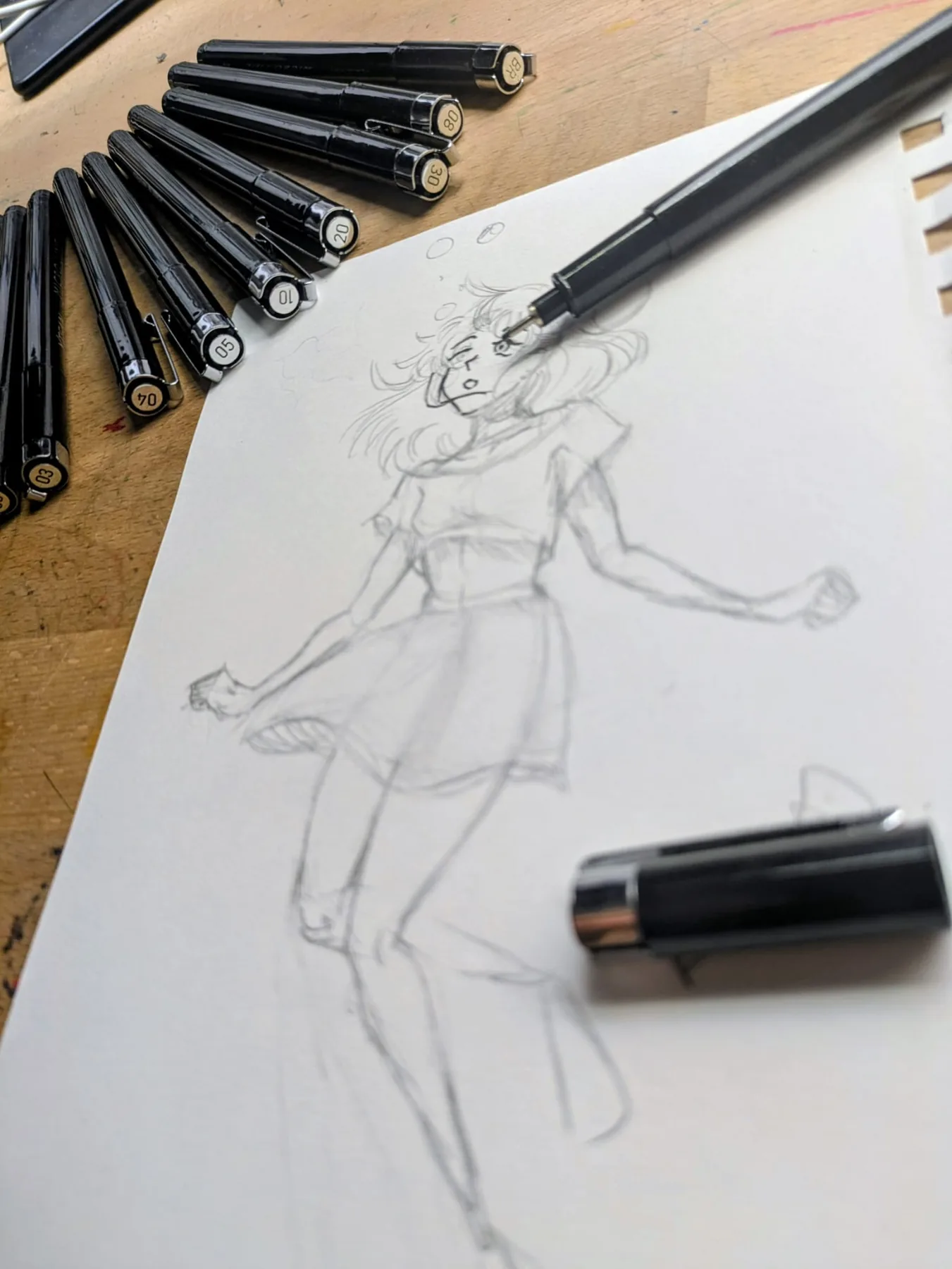
The fineliner is a tool that shows up constantly in an illustrator’s life (as long as they draw on paper and don’t prefer a dip pen).
It lets you ink drawings with precision. Fineliners are usually sold in sets. Each one has its own nib size, running from the very finest to the thickest.
Fineliners are most often black, and they’re used a lot for manga drawing.
Drawing tablet
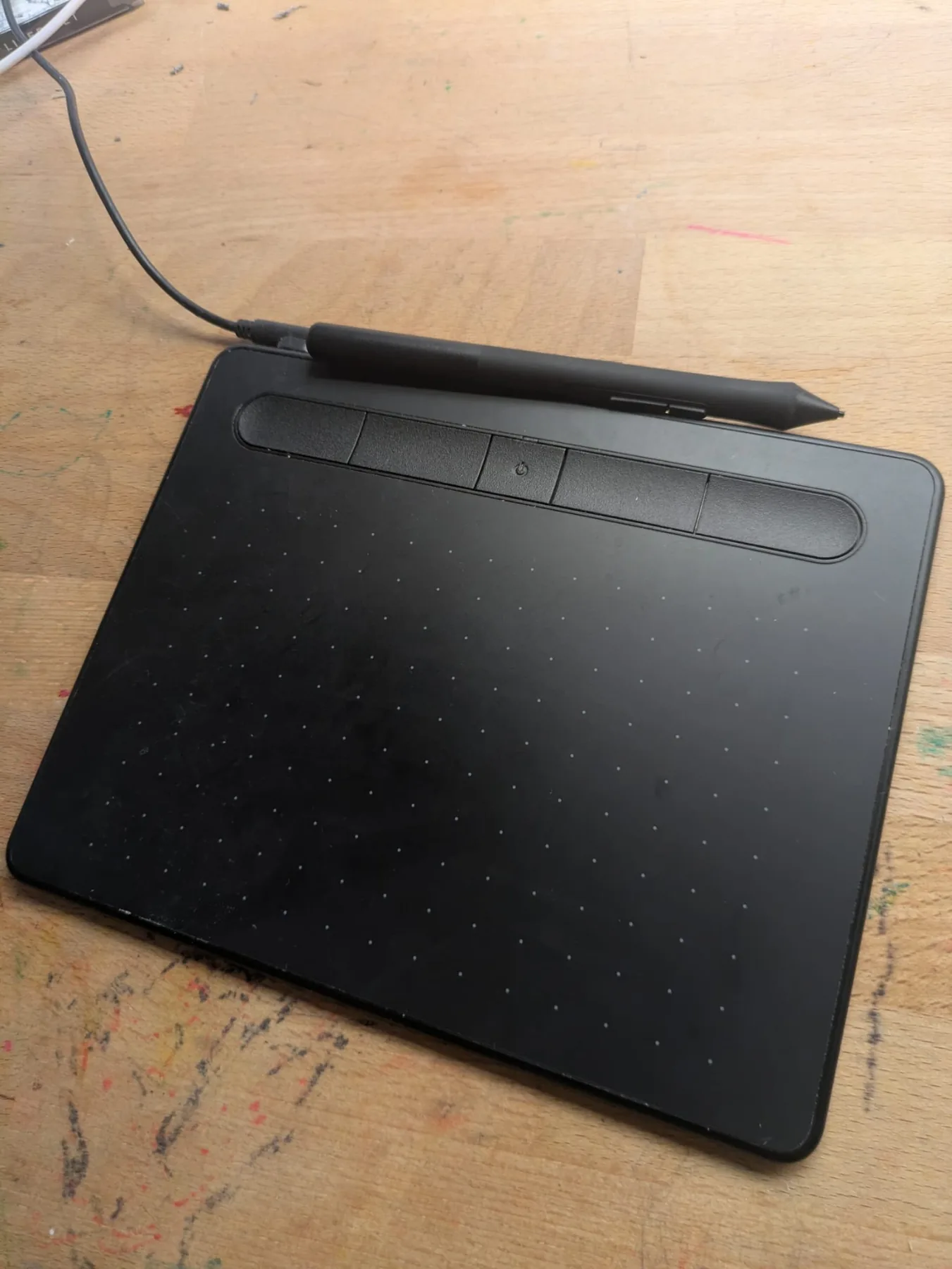
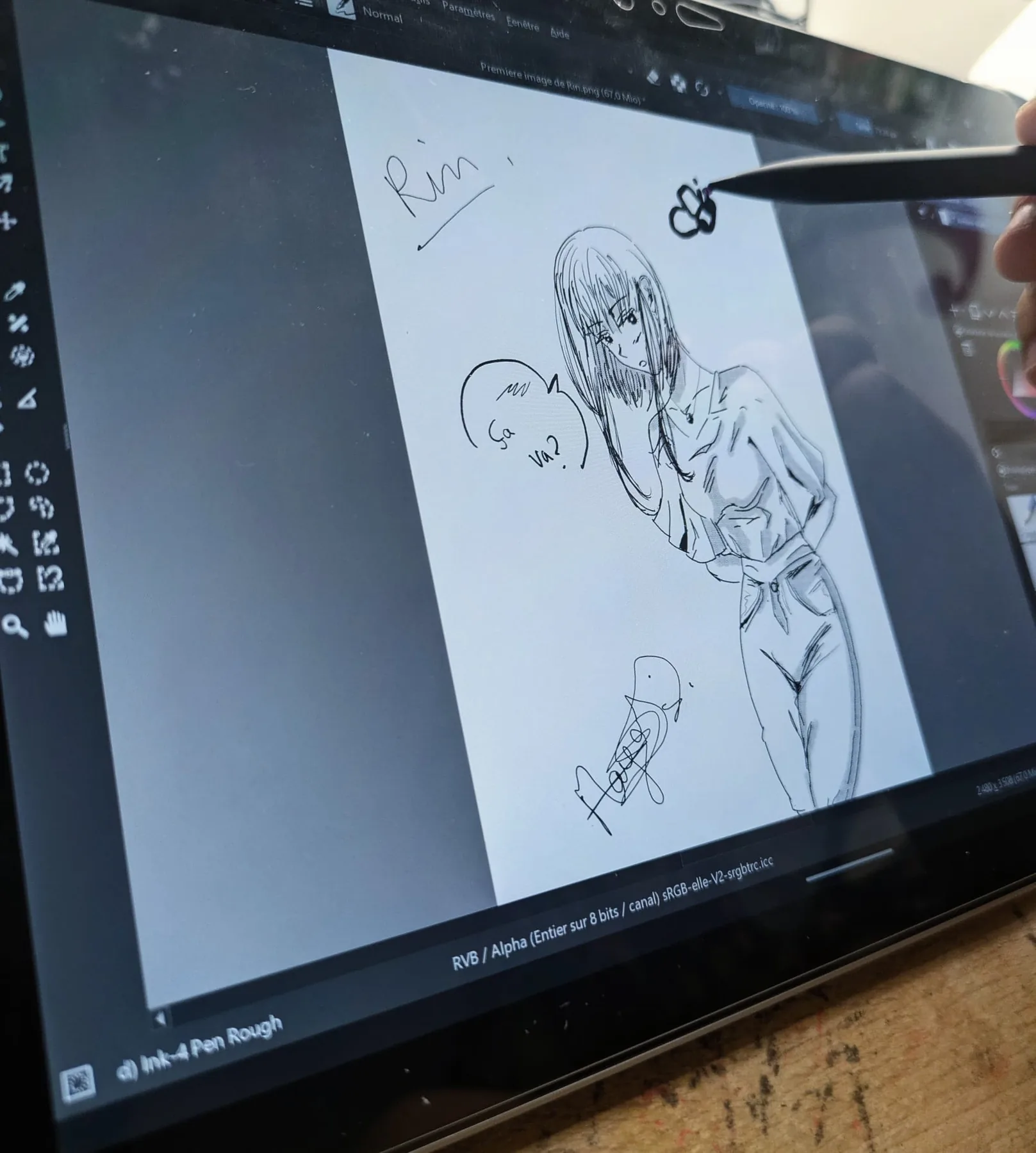
For everything I draw digitally I use a touchscreen tablet with a stylus : I draw straight onto the screen, where I’m actually looking. It’s pressure sensitive, so the harder I press the thicker the line — just like a real pencil.
It does the job, but it has its limits : the line always lags slightly behind the stylus, the screen is small — I spend my time zooming in and out — and it overheats as soon as a drawing gets heavy, which slows it down even more.
Drawing software
The software is where everything happens once the stylus is in your hand. I work in layers : one for the sketch, one for the inking, one or more for the colours — that way you can rework a stage without wrecking the others. Each brush imitates a real tool (pencil, ink, watercolour), and you can undo as many times as you like, which takes a lot of the pressure off when you’re starting out.
What I want next : XPPen Artist Pro 16 (Gen 2)
My touchscreen tablet is enough for now, but it’s small, it overheats and the line lags behind the stylus. What I want next is a proper pen display wired to the computer : the XPPen Artist Pro 16 (Gen 2). The computer does the work, not the tablet — so no more slowdown when the file gets heavy.
It’s a 16-inch screen at 2560 × 1600, fully laminated — the stylus tip touches the line itself, with none of that little gap between the glass and the image. The X3 Pro stylus is battery-free, with 16 384 pressure levels and tilt up to 60°, so the line really does thicken according to how I press and how I angle my hand.
What interests me most is the colour reproduction (159 % sRGB, factory calibrated) : my scanned watercolours and my digital drawings would finally be the same shades on screen and in print.